We rank vendors based on rigorous testing and research, but also take into account your feedback and our commercial agreements with providers. This page contains affiliate links. Advertising Disclosure
Jira Software already offers a great set of core features, but when seamlessly combined with Atlassian’s other products, it provides an ideal project management solution for larger teams. While this project management tool focuses on software developers and IT professionals, it still offers decent functionality for other Agile, Scrum, or Kanban teams.
If you’ve ever worked as (or near) a software developer, then you’ll have already heard of Jira Software. Jira, for short, is a slimline project management tool that focuses on helping IT and development teams navigate not only the development process, but the life cycle of their product. Whether you’re a small indie developer or an IT helpdesk in a huge organization, Jira offers everything you need to streamline your workflow.
That’s not to say that teams outside of IT and software development can’t use Jira, though. Jira is flexible enough that any team following the Agile project management methodology can adapt it to their workflow. If you’re already familiar with Agile, picking up Jira will be simple. But if you’re not, be prepared for a steeper learning curve.
Small teams will absolutely love the free plans on offer. Unlike other free plans on the market, core features aren’t locked behind the paid plan – you’ll get everything you need for up to 10 users. If you need to upgrade for the handful of features that aren’t available on the free plan, or you have a larger team, then you can try Jira for free for 7 days.
I’ve spent dozens of hours putting Jira Software (and various other Jira products) to the test. Keep on reading to see whether it’s a good fit for your project.
A Quick Note on Terminology
Atlassian (Jira’s parent company) has created multiple products within the Jira family. Jira Software is one of four Jira-branded products. To keep things simple, I’ll be referring to Jira Software as “Jira” throughout this review. I’ll refer to all other Jira-branded software by their full names.
4.9
Features
(Almost) All The Core Features You’ll Need – No Bloat
Jira excels at providing exactly what your team needs to manage its projects. You’ll get plenty of storage, unlimited single-project automation, and more. You’ll also get enterprise-grade security on all plans.
Despite all the features that Jira offers, it doesn’t quite keep up with monday.com or ClickUp. You probably won’t miss the extra templates or customization unless you’re planning highly complex projects, but you might notice the lack of a built-in time tracker.
Basic Templates Keep Things Simple
Jira doesn’t have the most impressive range of project templates. There are only 4 pre-built templates available for Jira, plus a handful of third-party options that you’ll have to install separately. This isn’t surprising given that Jira focuses on the Scrum and Kanban frameworks of Agile project management. Both of these frameworks prescribe a fixed workflow so any variations on these templates are likely to be minor and required in only a handful of use cases.
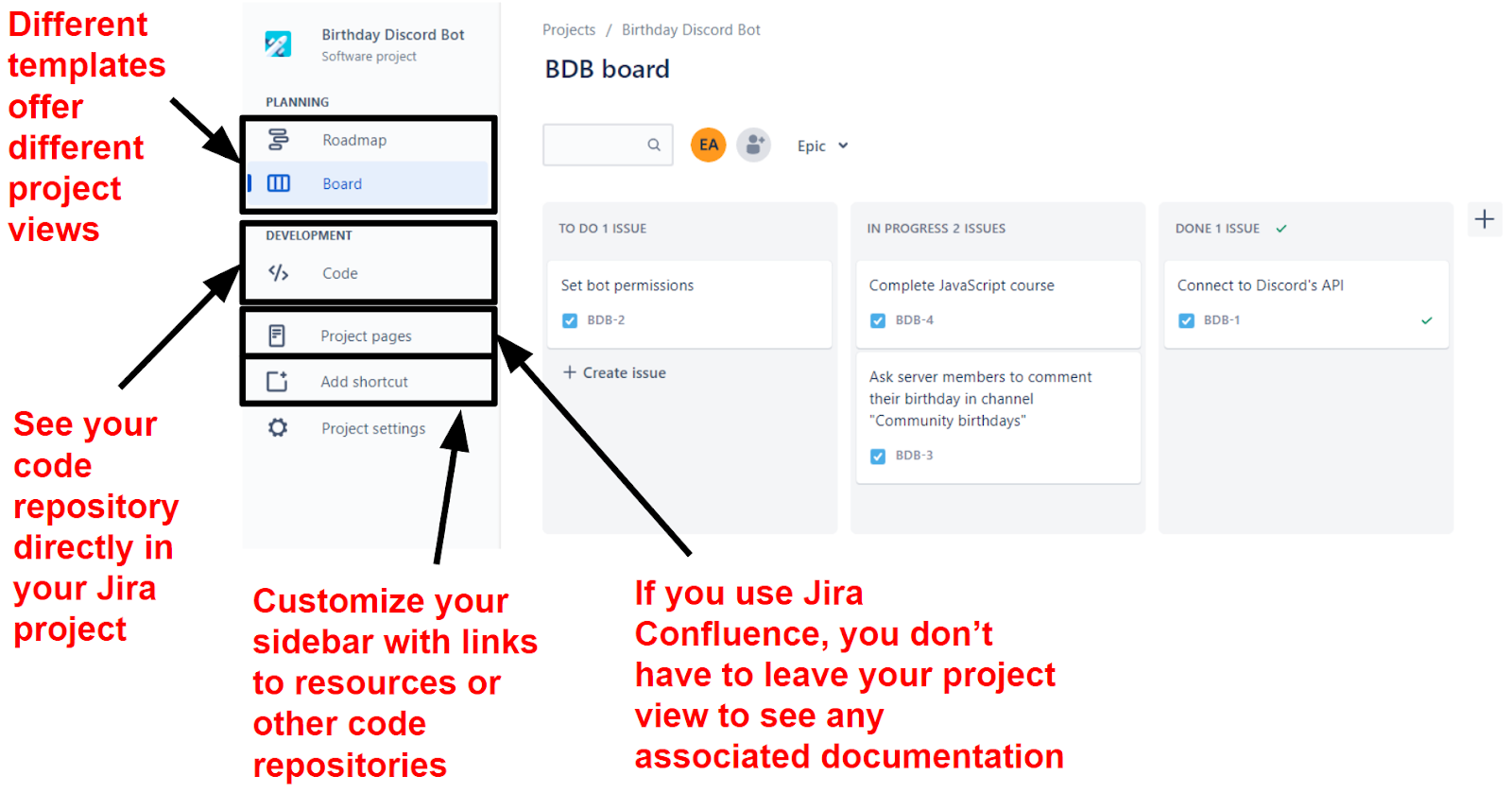
Jira’s Kanban template is very basic, and you’ll only get two project views
The saving grace here is Jira Confluence. I usually prefer to test and review project management tools on the merit of the core software alone. However, when you start using Jira, you’ll see that rather than being a completely separate software tool, Jira Software is just a piece of the wider Jira suite.
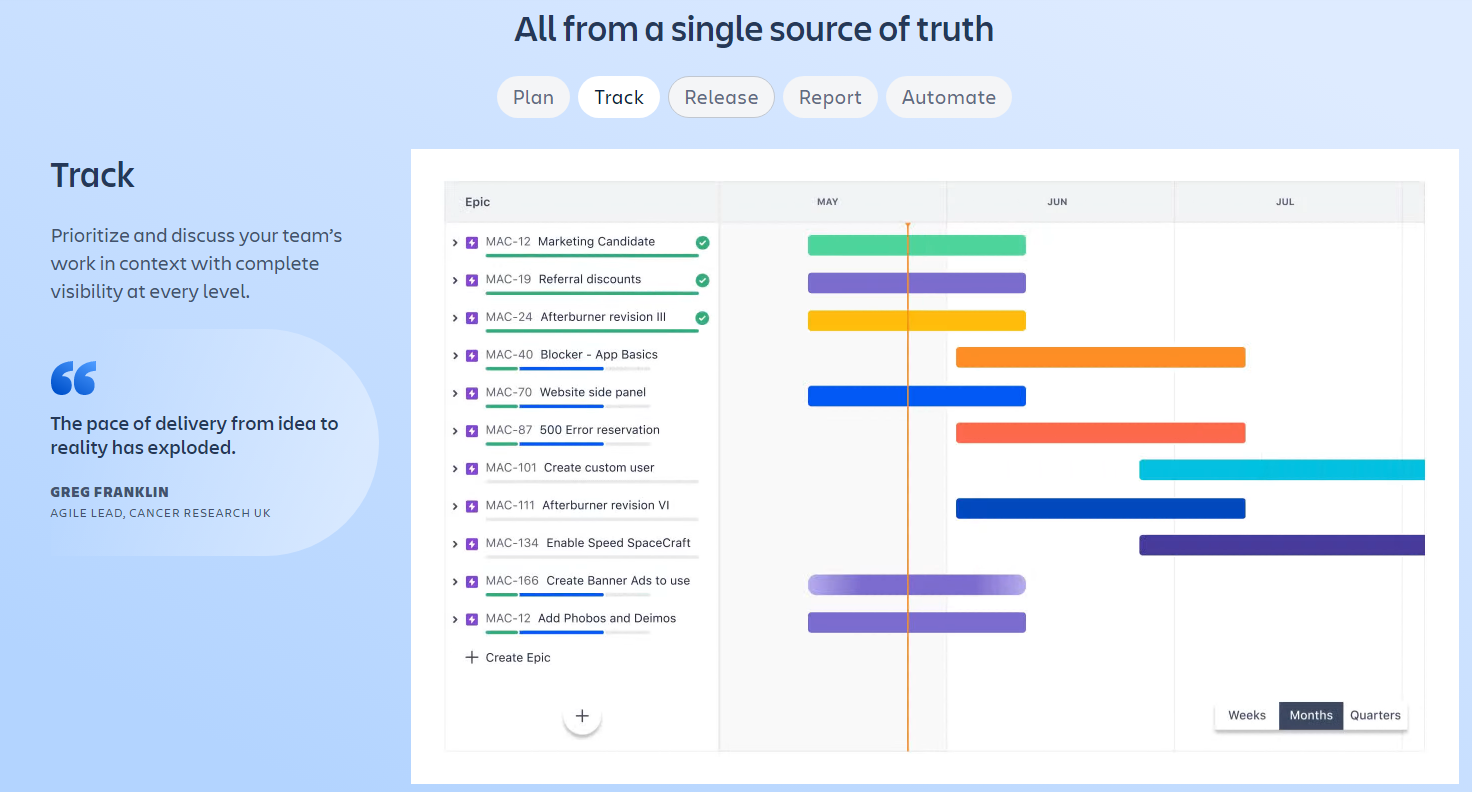
Jira Confluence hugely expands your options, with 75+ fully customizable page templates to help you build your project’s knowledge base. These include generic templates, from buyer personas and writing guidelines to Agile-specific templates like sprints and retrospectives. Confluence greatly expands Jira’s functionality from a simple service or project management tool to a single source of truth.
As long as you have a Confluence “space” (or wiki) connected to your project, you can even create new pages or edit existing ones within the “Project pages” tab of your Jira project. This means you don’t have to repeatedly switch over to Confluence, which is a great way to streamline your workflow. Any new pages created in your Confluence space will automatically show up in this tab, too.
Limited Project Views – But, Given Context, it Makes Sense
Jira doesn’t offer a ton of project views, and the project views you get depend on the template you choose. For example, you’ll only get a timeline and board view on the Kanban template. On the Scrum template, you’ll get an additional view called Backlog, which is used for planning sprints and – you guessed it – managing your project’s backlog. Choose the Bug Tracker template, and you’ll only have the spreadsheet-style Issues view.
When it comes to Agile project management, it makes sense to limit your project views to the bare necessities. That’s because you’ll typically be working in shorter blocks (or “sprints”) that last 1-4 weeks. Instead of focusing on the bigger picture, teams instead focus on specific features, issues, or other aspects of the project.
Jira is designed to have multiple parts of your project split into different spaces to streamline individual workflows. It means that, for example, a software development team can have one space to track their current sprint, and another for users to submit bugs to be addressed in a future sprint. This is fairly unique to Jira, so if you’re more familiar with other project management tools, it’ll take some time to get used to this segmentation.
It’s not an ideal solution (particularly for budget-conscious businesses), but connecting Jira Service Management or Work Management gives you the extra project views. Here, you’ll be able to set up projects with calendar views. However, you won’t be able to add these project views to Jira Software. Again, this is clearly to keep each part of your project streamlined, but I’d have liked to have the option to keep everything in one place.
Over Three Thousand Free and Paid Integrations
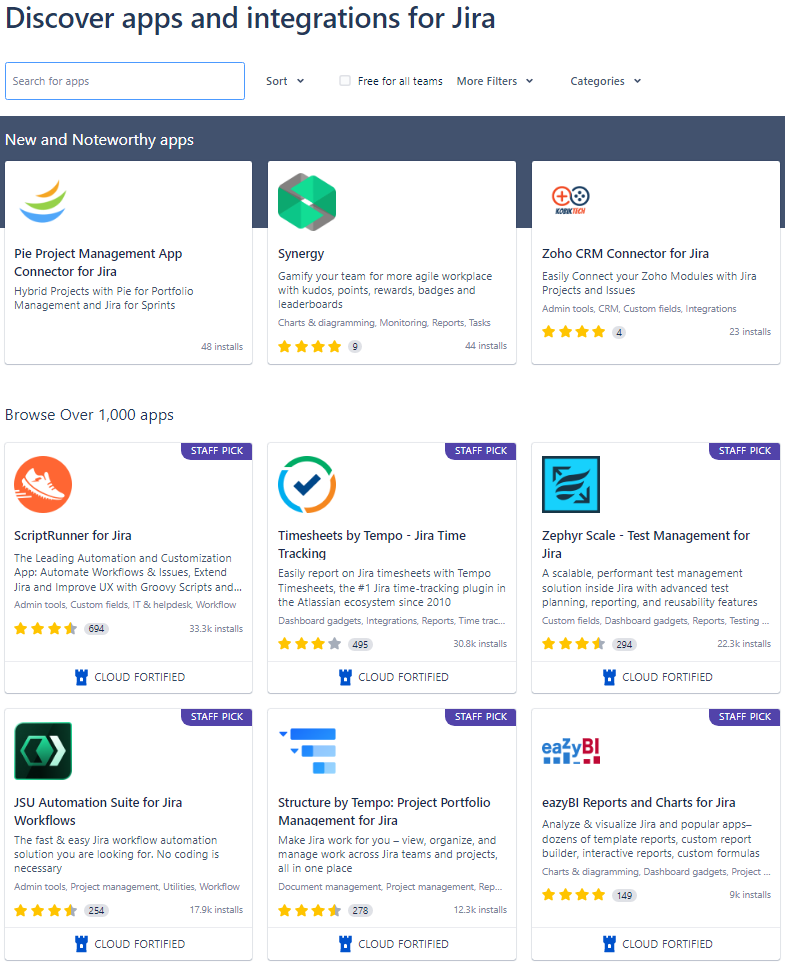
If Jira doesn’t have the feature you need, you’ll likely find it in the app marketplace
Jira offers one of the largest app marketplaces I’ve seen for a project management tool. You can filter your search based on whether you need an app for Jira Software, Confluence, or any other Atlassian tool.
Not only does the marketplace offer integrations with popular software solutions like Slack, Microsoft 365, Clockify, and monday.com, but you can extend Jira’s functionality with a huge variety of third-party tools. There are apps for everything – from automating workflows to daily standup forms (for scrum projects).
With Jira’s robust API and the built-in OAuth credential manager, you can also create your own secure integrations with self-hosted tools. Using OAuth for security means that your third-party integrations will have no access to the data on the Jira cloud server – apps will only see the issue-related data that is sent to them. This helps to keep your Jira account secure.
Flexible User Permissions
As your team grows, it can be tricky to manage which users can access, edit, and otherwise manage elements of your project. Jira offers a great solution for this.
Through your Atlassian Administration dashboard, you (and other managers or admins) can set up groups to control what users can access and change across your software suite. New users can be invited to specific groups when they join, which is a great way to reduce the risk of someone accessing (or editing!) something they shouldn’t.
Whenever you create a new project in either software, you’ll be able to set global permissions before you invite users to the project. From there, you’ll also be able to set permissions for what users can do within projects and spaces. Confluence even allows you to set individual permissions per page. You can get super specific with what each user is allowed to do, which is an ideal way of keeping your security strict yet flexible.
Optional Security Add-On
Atlassian Access is a paid security add-on for Jira that gives your organization more control over who can access projects, how they log in, and from which device. With this add-on, you can connect to your chosen identity provider (or use Okta, which is provided for free with Atlassian Access) to manage user access.
While this does come with an additional per-user cost, you can use its 30-day trial to see if this service will work for your organization. If you work with sensitive data, it could be worth it to prevent costly data breaches.
4.6
Ease of use
Pick-Up-and-Play for Agile Pros, Some Learning Curve Otherwise
Jira has clearly been designed for people who either currently use the Agile methodology or have a good foundational understanding. While it only took me about 10 minutes to set up a basic project, it didn’t offer any guidance or onboarding to help me understand how the software works. That said, the UI is simple and intuitive, so if you’ve used any project management software before, it won’t take too much time to find your way around.
Getting Started With Jira
Go to the Atlassian homepage and clickProducts > View all products > Jira Software. From there, click onGet it free. You’ll then be asked if you want to try Confluence alongside Jira, so make sure you click Select. Click Next to sign up, either by entering your email address and name or using your Google account. You’ll then be asked to enter a name for your Jira site and choose one of three available templates.
Setting up projects on Jira is easy, but there’s no option to preview templates before you choose them
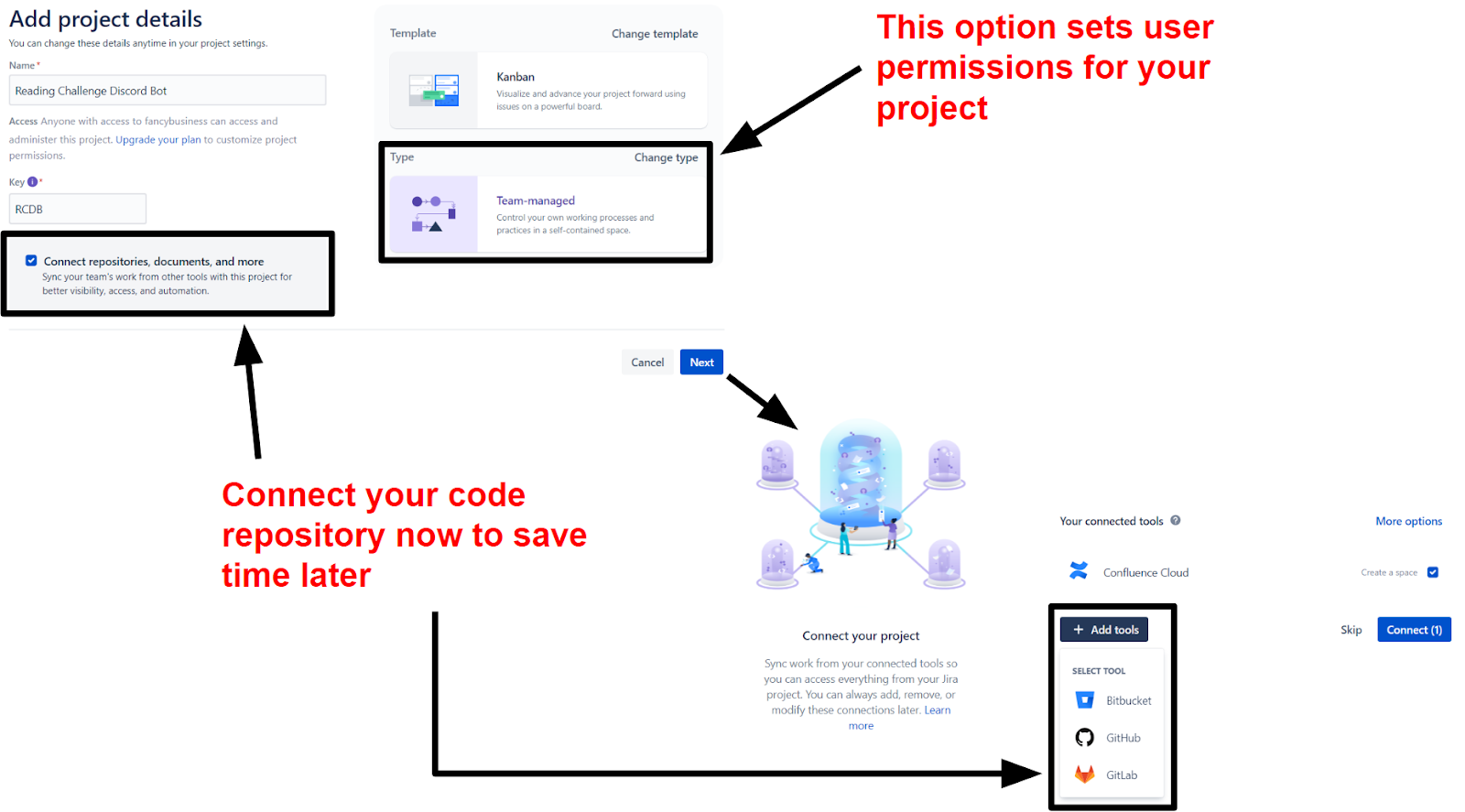
From there, you’ll be prompted to choose your project type. You can choose between a team-managed and company-managed project, with each option offering different user permissions. Take your time here – you can’t change your project type later. While Jira allows you to customize user permissions on some plans, company-managed projects have more flexibility in user permissions compared to their counterpart.
Finally, you’ll get the option to connect Confluence and your code repository, which makes setting up your project a breeze. I would’ve liked the option to add apps or integrations at this stage, but I can see the benefits of keeping the setup process streamlined to the basics.
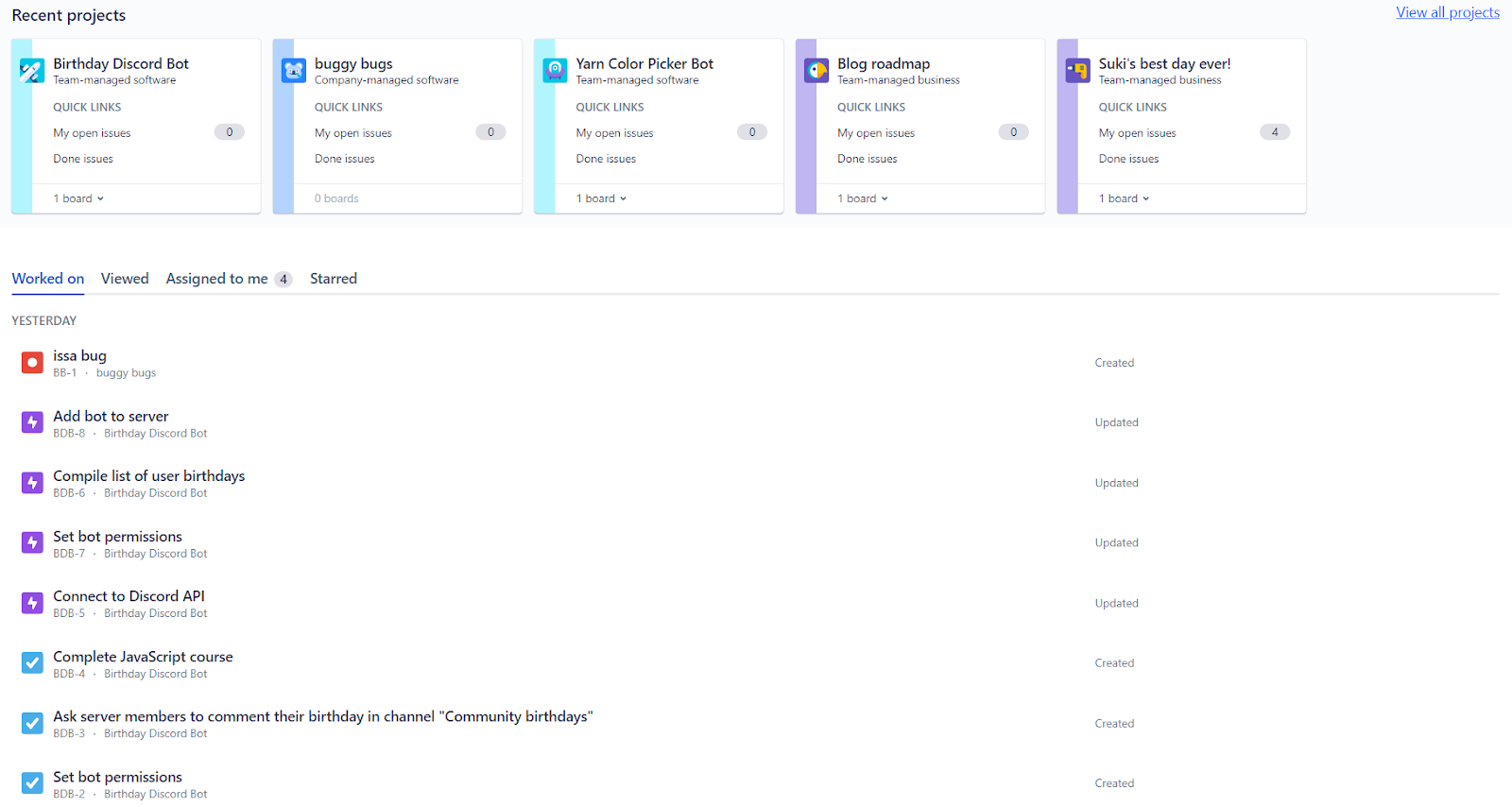
Given that Jira is designed to give you a separate space for each aspect of your project, it could easily get overwhelming if you’re running multiple projects at once. TheYour Worksection of Jira is here to save the day. This is your homepage and personal dashboard, and it contains quick links to all the recent projects and tasks you’ve worked on. You’ve also got a tab that narrows this list down to the tasks that have been assigned to you, so you can stay laser-focused on your workload.
 Website Planet